
Appearance
Start Node
TL;DR:
- Use this node to: Define the entry point where your bot begins execution and configure the trigger command.
- Best when: Initializing a new bot flow, setting the
/startcommand, or any custom command-based scenario. - Avoid when: You need to branch logic or send messages — use specialized nodes for those.
What it does
The Start node is the mandatory entry point of every scenario. It tells the runtime engine where to begin execution when a user triggers the bot command. Every scenario has exactly one Start node.
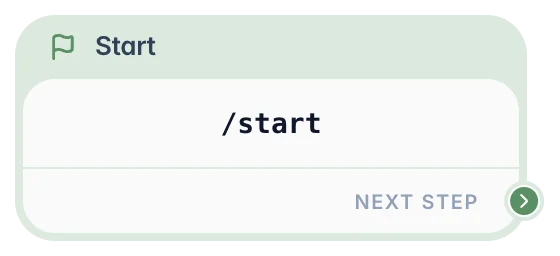
On the canvas, Start behaves like a special read-only system node: you can open its settings and configure the scenario command, description, icon, menu visibility, and next step, but you cannot delete, duplicate, or replace the Start node itself.
Opening the Start node's settings panel lets you configure both the scenario identity (command, description, icon, menu visibility) and the next step in the flow.
In the editor
When to use it
- ✅ Initializing a flow — every scenario starts here.
- ✅ Handling Telegram commands — set
/start,/help, or any custom command as the trigger. - ✅ Menu presence control — configure whether this scenario appears in the
/menucommand list. - ✅ Deep linking — entry point for users arriving via
t.me/your_bot?start=promo. See Telegram Deep Linking.
When NOT to use it
- ❌ Mid-flow logic — never place a Start node in the middle of a conversation; use a Message node instead.
- ❌ Conditional branching — the Start node has a single exit; connect it to a Condition node to branch logic.
- ❌ Variable manipulation — the Start node produces no data; use an Actions node for that.
What you can configure
In a Start node, you configure the scenario identity and the first step of the flow.
You can configure:
- Icon — Visual icon shown in the menu and scenario list. Defaults to
Workflow. - Scenario Command — The Telegram command that triggers this scenario (for example,
start,help). Only lowercase letters, digits, and underscores are allowed. Maximum 32 characters. - Command Description — Short description shown in the dashboard and Telegram bot menu. Minimum 3, maximum 64 characters.
- Show in menu — Whether this scenario appears in the
/menucommand list. Enabled by default. - Next — The first node to execute after the Start node. Must be connected for the bot to do anything.
INFO
Clicking Save & Close saves the scenario details (command, description, icon, menu visibility) via an API call and saves the next-step link in node data — both in one action.
Output and behavior
- Next step behavior: Single mandatory output port labeled Next. Execution moves to the connected node immediately with zero delay.
- Canvas display: The node displays
/commandon the canvas so you can identify the trigger at a glance. - Side effects: The Start node itself performs no actions and produces no messages. All visible output comes from subsequent nodes.
Examples
Minimal example: Welcome message
Goal: Send a greeting when a user starts the bot. Setup: Set command to start, command description to "Welcome flow". Connect Start → Message ("Hello! Welcome to our service."). Result: User types /start → receives the welcome message instantly.
Real-world example: VIP routing
Goal: Segment users by status the moment they enter. Setup: Connect Start → Condition (checks vip_member tag). Match branch → VIP offer message. No Match branch → standard onboarding. Result: Users see a personalized experience from the very first interaction.
Real-world example: Campaign deep link
Goal: Start the same onboarding flow from a tracked marketing link. Setup: Set the Start command to start, publish the scenario, and share a link like https://t.me/your_bot?start=utm_source-google_medium-cpc_campaign-spring. Result: The user enters through /start, the flow begins normally, and the campaign values are available from the first step. See Telegram Deep Linking.
Common pitfalls
- Unconnected output → Bot is triggered but nothing happens. Fix: connect the Next handle to a node.
- Invalid command characters → Settings fail to save. Fix: use only lowercase letters (
a-z), digits (0-9), and underscores (_). - Empty description → Save is blocked. Fix: enter at least 3 characters in the Command Description field.
- Unpublished changes → Live bot still follows old logic. Fix: click Publish after saving.
FAQ
Q: Can I have multiple Start nodes?
A: No. Each scenario has exactly one Start node.Q: Can I delete the Start node?
A: No. The Start node is permanent and cannot be removed from the canvas.Q: What is the difference between "Scenario Command" and "Command Description"?
A: The Scenario Command is what the user types in Telegram (e.g.,/help). The Command Description is a short human-readable label shown in the dashboard and the Telegram bot menu.Q: Where are the command and description stored?
A: In the Scenario record. Saving the Start node settings triggers a dedicated save — separate from the node data itself.Q: Can I hide a scenario from the /menu?
A: Yes — toggle Show in menu off in the Start node settings.
Related nodes
- Message Node — The most common node to connect after Start.
- Condition Node — Used after Start to branch logic based on user data.
- Actions Node — Used after Start to update variables upon entry.
- Telegram Deep Linking — Build
/startlinks with parameters and use them in your flow.