
Appearance
Calendar Slot Picker
TL;DR:
- Shows available dates and time slots fetched live from a connected Google Calendar.
- Always creates a Google Calendar event when the user confirms a slot.
- If the user already has a booking, always shows a reschedule prompt (Reschedule / Keep booking).
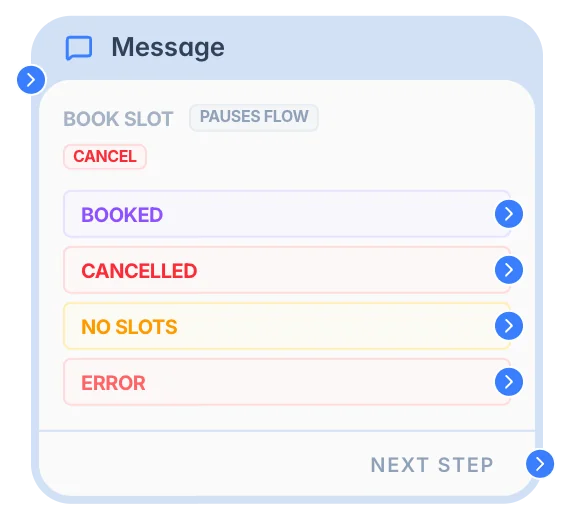
- Optional Allow cancellation adds a Cancel button and a dedicated output link.
- Branches through Booked, Cancelled (if enabled), No slots, and Error outputs.
What it does
The Calendar Slot Picker card lives inside a Message Node. It gives your bot users a step-by-step booking experience directly in Telegram:
- The bot displays available dates as buttons.
- The user picks a date.
- The bot shows open time slots for that day.
- The user picks a time — the bot creates a Google Calendar event and saves the booking.
Availability is fetched in real time from your connected Google Calendar, so the bot only ever shows genuinely free slots.
INFO
Requirement: Google Calendar must be connected before this card will work. Go to Workspace Settings → Integrations and follow the Google Calendar setup steps there.
When to use it
- ✅ Appointment booking — Let users pick a date and time for a consultation, lesson, or service directly in Telegram.
- ✅ Rebooking — Returning users with an existing booking are always offered a reschedule prompt before seeing the date picker.
- ✅ Cancellation — Enable Allow cancellation to give users a Cancel button that deletes the calendar event and clears the booking.
- ✅ Automated reminders — Send a reminder message before the appointment (for example, 24 hours before).
When NOT to use it
- ❌ Fixed-time announcements — Use a Message Node with a Schedule Node if you just want to send a message at a specific time without booking interaction.
- ❌ Simple date collection — Use a Message Node with a Question card and reply buttons if you only need the user to pick from a fixed list of dates without checking Google Calendar availability.
- ❌ Multi-day event booking — The Slot Picker handles single-slot appointments. It does not support booking date ranges or multi-day events.
In the UI
What you can configure
Schedule settings (workspace-level)
Working hours, allowed weekdays, slot duration, and time format are configured once for the entire workspace — not per card. Every Calendar Slot Picker card in your workspace shares these settings.
To change them go to Workspace Settings → Integrations → Google Calendar.
Per-card settings
| Setting | Description | Default |
|---|---|---|
| Max dates shown | Maximum number of date buttons displayed at once. | 7 |
| Max time slots shown | Maximum number of time buttons shown for a selected date. | 8 |
| Show timezone note | When on, the timezone name is appended below the date picker. | Off |
| Event title | Title of the Google Calendar event created after booking. Supports variables, e.g. Consultation with {%first_name%}. | — |
| Event description | Optional body text for the created event. Supports variables. | — |
| Allow cancellation | Adds a Cancel booking button to the reschedule prompt. When cancelled, the event is deleted, the booking is cleared, and the Cancelled output fires. | Off |
Calendar selection
The card does not select a calendar by itself. Instead, the runtime resolves the target calendar in this order:
- Bot Settings → Customization → Calendar — if this bot overrides the workspace default.
- Workspace Settings → Integrations → Google Calendar — the workspace default calendar.
- The connected Google account's Primary calendar as a hard fallback.
This means every booking card inside the same bot uses the same resolved calendar.
Rebooking behavior
If a user already has an active booking and reaches a Calendar Slot Picker card again, the bot always shows a reschedule prompt:
"You already have a booking on Tuesday, May 5 at 10:00. Would you like to reschedule?"
The user sees two buttons — Reschedule and Keep booking:
- Reschedule — opens the date/time picker. The old calendar event is deleted only after the user successfully confirms a new slot, so no booking is ever lost mid-flow. The old reminder is cancelled and a new one is scheduled.
- Keep booking — closes the prompt and routes to the Booked output as if the booking was just confirmed.
If Allow cancellation is on, a third Cancel booking button appears. Tapping it deletes the calendar event, clears the booking, cancels any scheduled reminder, and routes to the Cancelled output.
Reminder (optional)
When this toggle is on, the bot sends the user a message before their appointment.
- Timing: Set how far in advance — for example, 30 minutes, 2 hours, or 1 day before.
- Message: Supports calendar variables such as
{%calendar.date%}and{%calendar.time%}so booking details are included automatically. - Scenario restart safety: The reminder survives normal scenario restarts. It is not cancelled together with regular Delay or Schedule node tasks.
- Rebooking behavior: If the user reschedules, the old reminder is removed and a new reminder is scheduled for the new appointment.
- Expired window: If the appointment is already closer than the reminder window (for example "3 days before" but the booking is tomorrow), no reminder is sent immediately and the reminder is skipped for that booking.
INFO
The reminder only sends if the bot still has access to the user's chat at that time. If the user has blocked the bot, the message will not be delivered.
Output and behavior
The Calendar Slot Picker card pauses the scenario and waits for user interaction. The flow branches based on what happens:
- Booked: The user successfully picked a date and time (or kept their existing booking). Connect to your confirmation message or next step. A booking record is persisted and calendar variables are available.
- Cancelled: (Only available when Allow cancellation is on.) The user pressed Cancel booking. The Google Calendar event is deleted and the booking is cleared. Connect to a cancellation confirmation message.
- No slots: No available dates were found in the configured range. Connect to a message like "No slots available — try again tomorrow."
- Error: Something went wrong with the calendar connection, or the user exceeded the conflict retry limit. Connect to an error message or support prompt.
Conflict handling: If a slot becomes unavailable between the time the user sees it and when they confirm, the bot automatically retries up to the configured maximum (default 3). If all retries fail, the Error output fires.
Session restart: If the user closes the bot mid-booking and the session restarts, the in-progress calendar flow state is lost. The user will need to start the booking from the beginning.
Available variables after booking
Once the user picks a slot, the following variables are available in all subsequent cards and nodes:
| Variable | Value |
|---|---|
{%calendar.has_booking%} | true while an active future appointment exists |
{%calendar.date%} | The booked date in org timezone (YYYY-MM-DD) |
{%calendar.time%} | The booked time in org timezone (HH:MM) |
{%calendar.datetime_utc%} | Full start datetime in UTC (ISO 8601) |
{%calendar.end_datetime_utc%} | Full end datetime in UTC (ISO 8601) |
{%calendar.event_id%} | Google Calendar event ID |
{%calendar.event_link%} | Public "Add to Google Calendar" link — send this to users so they can save the appointment to their own calendar |
INFO
Note: Bookings are kept separate for each bot. A user can have different bookings in different bots within the same workspace.
Examples
Example 1: Simple consultation booking
Goal: Let users book a consultation and get a confirmation with an "Add to Calendar" link.
Setup: Add a Calendar Slot Picker card in a Message node. Set Event title to Consultation with {%first_name%}. Connect the Booked output to a confirmation Message node: You're booked for {%calendar.date%} at {%calendar.time%}. Add to your calendar: {%calendar.event_link%}. Connect the No slots output to a fallback message.
Result: The user picks a date and time, the bot confirms the booking, creates a Google Calendar event, and sends a link the user can tap to save the appointment to their own calendar.
Example 2: Booking with reminder and cancellation
Goal: Book appointments with a 24-hour reminder and allow cancellation.
Setup: Enable Allow cancellation. Enable Reminder set to 1 day before with a message like Reminder: your appointment is on {%calendar.date%} at {%calendar.time%}. Connect the Cancelled output to a cancellation confirmation message: "Your booking has been cancelled. Feel free to book again any time."
Result: Returning users always see the reschedule prompt. Users who cancel get clean confirmation. Rescheduling replaces the old event and reminder automatically.
Common pitfalls
"No available dates" but Google Calendar has free slots → Working hours or allowed weekdays are not configured. Fix: Go to Workspace Settings → Integrations → Calendar and verify that working hours and at least one weekday are saved.
Calendar slots don't match what you see in Google Calendar → The wrong calendar is selected, or all-day events are blocking slots. Fix: Check the calendar in Workspace Settings → Integrations → Google Calendar. All-day events block overlapping slots — move them to a different calendar or delete them.
"Error" output fires after the user picks a slot → The Google Calendar connection was lost, or the slot was taken between display and confirmation after all conflict retries. Fix: Reconnect the calendar. The user can retry — availability is checked fresh every time.
Reminder is not sent → The appointment is closer than the reminder window (for example, "1 day before" but the booking is in 6 hours). Fix: Choose a shorter reminder window, or accept that short-notice bookings will not receive a reminder.
User's booking state is lost after bot restart → The calendar flow state (selected date, time) does not survive session restarts. Fix: If restarting the bot mid-flow is common, keep the booking path short and avoid long waits between the date and time steps.
FAQ
Q: What happens if two users try to book the same slot at the same time?
A: The first user to confirm gets the slot. The second user will see a conflict retry — the date picker is re-rendered with an updated list of available slots. After 3 retries (the default), the Error output fires.Q: Can the user cancel their booking?
A: Yes, if Allow cancellation is enabled. The user will see a Cancel booking button in the reschedule prompt the next time they reach a Calendar Slot Picker card. Cancelling deletes the Google Calendar event, clears the booking, and routes the flow through the Cancelled output.Q: Does Calendar Slot Picker support multiple calendars per bot?
A: No. Each bot resolves one calendar (from bot settings, workspace settings, or the Google primary). All Calendar Slot Picker cards in the same bot use that same calendar.Q: What timezone is used for the booking?
A: The timezone comes from the workspace Google Calendar settings. The Show timezone note toggle appends the timezone name below the date picker so users can see it.Q: Does the event add the user as a calendar attendee?
A: No. The event is created on your calendar only. The user is not added as an attendee, but they can tap the{%calendar.event_link%}link to add the event to their own calendar.
Related nodes
- Message Node — Where the Calendar Slot Picker card is added.
- Condition Node — Check
{%calendar.has_booking%}or booking status. - Delay Node — Add a wait before sending a follow-up after booking.
- Calendar Integration — Connect Google Calendar and configure booking defaults.