
Appearance
Delay Node
TL;DR:
- What: Temporarily pause the flow for a specific user before continuing.
- When: You need natural conversation pacing or want to send a follow-up after a set period.
- Result: The bot schedules a future task and resumes the flow automatically when the time is reached.
What it does
The Delay node pauses a user's session for a specific amount of time. Instead of sending all messages instantly, the bot "parks" the user, schedules a future task, and moves on to serving other people. When the target time is reached, the bot automatically resumes the flow and moves the user to the next node.
It is an asynchronous step — it does not wait around for the user; it schedules a future task and frees up resources immediately.
When to use it
- ✅ Conversation pacing — Add a short pause between messages to make the bot feel more natural.
- ✅ Follow-up sequences — Wait a few hours or days before sending a re-engagement message.
- ✅ Next-day delivery — Send a message tomorrow at a specific time (for example, a morning reminder).
- ✅ Time-of-day delivery — Resume at the next occurrence of a specific clock time (for example, 18:00).
- ✅ Business-day logic — Only resume on selected weekdays.
When NOT to use it
- ❌ Fixed calendar dates — Use the Schedule node for specific dates like "May 20 at 14:30".
- ❌ Waiting for user input — Use a Message node with a Question card.
- ❌ Conditional pauses — Use a Condition node to decide whether to pause.
In the UI
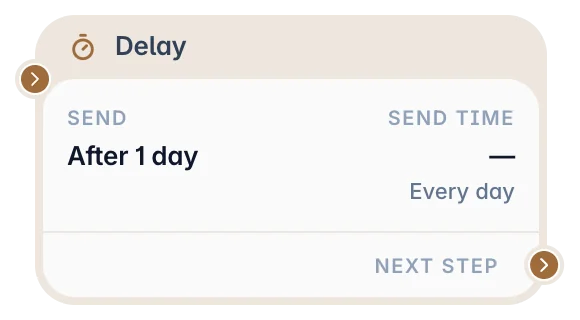
Configure delay type, timing, and allowed days in the Delay node settings panel.
What you can configure
In a Delay node, you choose when the bot should continue the scenario for each user.
You can configure:
- Delay type — Choose whether the bot waits for a duration, waits until tomorrow, or waits until a specific time.
- Duration — Set how long to wait when using the After type.
- Time — Set the exact time of day for At, Tomorrow, or Exact delivery.
- Delivery policy — Choose whether the bot resumes as soon as the delay expires or waits for a specific time of day.
- Allowed days — Choose which weekdays the bot is allowed to resume on.
Delay types
After
Use After when the bot should wait for a relative duration from the moment the user reaches the node.
Example: wait 2 hours after the user abandons a cart.
Tomorrow
Use Tomorrow when the bot should continue on the next calendar day at a selected time.
Example: continue tomorrow at 09:00.
At
Use At when the bot should continue at the next occurrence of a selected time.
Example: continue at 18:00 today, or tomorrow if 18:00 has already passed.
Exact delivery
Use Exact when the delay should wait for a duration first, then resume at a specific time of day.
Example: if the delay is After 2 hours, delivery policy is Exact, and time is 18:00, the bot waits at least 2 hours and then resumes at the next available 18:00.
Restricting to specific days
Use Allowed Days to ensure your bot only resumes when you want it to (for example, only on business days). If a delay expires on a day that is not checked, the bot will wait until the next allowed day at the same time before proceeding.
Delay vs Schedule
Use Delay when the wait is relative to the moment the user reaches the node:
- wait 10 minutes;
- wait 2 hours;
- wait until tomorrow at 09:00;
- wait until the next allowed weekday.
Use Schedule when the wait is tied to a specific calendar date and time:
- wait until May 20 at 14:30;
- wait until a webinar starts;
- wait until a date stored in a variable.
Output and behavior
- Next step behavior: The node has one output branch — Next. Once the wait is over, the bot follows the connected link.
- User-facing result: Nothing during the delay. The user receives no messages until the delay expires.
- Side effects: A scheduled task is created in the system. The user stays on the current scenario version they entered.
- Important limits: A single Delay node can wait for up to 30 days. For longer waits, chain multiple Delay nodes.
INFO
Delay timers cannot currently be edited or cancelled directly from the Delay node settings after a user has already entered the node.
INFO
If you publish a new version of your scenario while someone is in a delay, they will continue their journey using the version of the scenario they were originally on. New users will use the newly published version.
Examples
Example 1: Creating a short pause
Goal: Make the bot feel more natural by waiting between two messages.
Setup: Add a Message node, then a Delay node set to After → 3 seconds, then another Message node.
Result: The user receives the first message, waits 3 seconds, and then receives the next message.
Example 2: Next-day follow-up
Goal: Send a follow-up message the day after a user abandons a cart.
Setup: Add a Delay node set to Tomorrow → 10:00, then connect it to a Message node with your follow-up text.
Result: The user receives the message at 10:00 AM in your workspace timezone the following day.
Common pitfalls
Delay feels "stuck" → The Next link is not connected to a destination node, or the Allowed Days selection is empty. Fix: Check your scenario connections and ensure at least one day is selected in the settings. Prevention: After publishing, test your scenario in Telegram with a short delay (for example, 5 seconds) to verify it correctly triggers the next step.
Timing is off (timezone mismatch) → Your workspace timezone might not match your intended timezone. Fix: Go to Settings → Workspace → General and verify the timezone is set correctly. Prevention: Always check your workspace timezone before configuring time-based delays.
Double messages after a delay → Two separate paths might lead to the same Delay node, or the user triggered the flow twice quickly. Fix: Use a Condition node to check if a user has already received the follow-up before sending it. Prevention: Avoid creating loops that pass through the same Delay node without a logic check.
User followed the old flow after a delay → You edited and published the scenario, but users who were already waiting continued through the old path. Fix: This is expected behavior. Waiting users stay on the scenario version they entered before the delay. New users will use the newly published version.
FAQ
Q: What is the maximum delay?
A: A single Delay node can wait for up to 30 days. For longer waits, chain multiple Delay nodes.Q: Can I wait for a specific calendar date?
A: No. Use the Schedule node for fixed dates, such as "December 25 at 09:00".Q: What happens if I edit the scenario while users are waiting?
A: Waiting users continue on the scenario version they entered. New users use the version published after your changes.
Related nodes
- Message Node — Send the next message after the pause.
- Schedule Node — Wait until a specific calendar date and time.
- Condition Node — Check whether the user still qualifies before sending a delayed follow-up.