
Appearance
Nodes Overview
TL;DR:
- Nodes are the functional blocks of your scenario, each performing a specific task or logic step.
- Every scenario must begin with a Start node.
- Connect nodes visually to define the conversation flow and automation logic.
Who this is for
- Bot Designers choosing the right components for their automation.
- Developers understanding the functional capabilities of the visual builder.
- New Users learning how to assemble their first bot scenario.
When to use it
- ✅ Building Telegram bots — All scenarios use nodes to define conversation flows, automation logic, and data processing.
- ✅ Choosing the right component — Knowing what each node type does helps you build efficient, maintainable scenarios.
- ✅ Planning your flow — Read this overview before diving into individual node documentation.
When NOT to use it
- ❌ Configuring a specific node — Jump to the individual node page for detailed settings, examples, and troubleshooting.
What it does
Nodes are the atomic building blocks of your bot's logic. Think of them as individual instructions in a recipe: one node sends a text, another waits for an hour, and a third checks if the user is a subscriber.
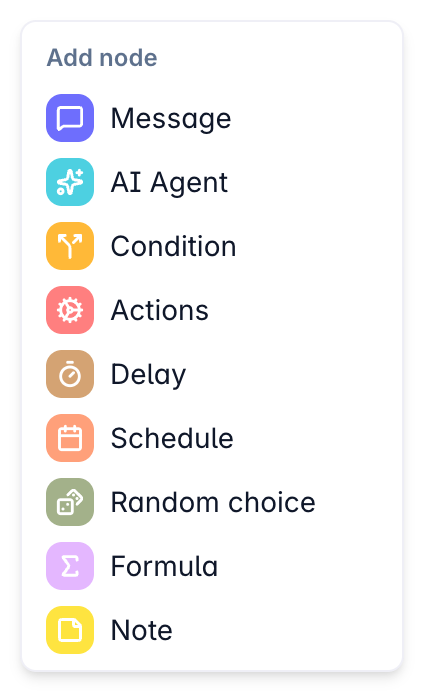
In the Scenario Editor, you open the Add Node menu to place nodes onto the canvas and connect them with links. The bot follows these links from one node to the next, executing the logic defined inside each block as it moves.
How it works
Each node type has a specific purpose and set of behaviors:
- Input/Output: Most nodes have an entry point (input) and one or more exit points (outputs).
- Execution: When a user reaches a node, the bot performs that node's specific action (e.g., updating a variable).
- Routing: The bot then follows the outgoing link to the next node. Some nodes, like Condition or Random, have multiple exits to branch the flow.
Node Categories
To help you find what you need, nodes are grouped into logical categories:
- Interaction: Sending messages and media.
- Logic: Branching, delays, and random choices.
- Data: Updating variables and performing calculations.
- AI: Intelligent automated responses.
Available Nodes
Start
The entry point for every conversation. Every scenario requires exactly one Start node to function. It is a special read-only system node on the canvas: you can configure its scenario settings, but you cannot delete or replace the node itself.
- Typical use case: Initiating the flow when a user sends the
/startcommand. - Link: Start Node
Message
Sends text, images, videos, or files to the user. It can also ask questions and wait for a response.
- Typical use case: Sending a welcome message or asking for a user's email address.
- Link: Message Node
Condition
Branches the flow into Match or No Match paths based on rules you define (e.g., checking tags or variables).
- Typical use case: Sending different messages to "New Users" vs. "Returning Customers."
- Link: Condition Node
Actions
Performs background tasks like adding tags, updating user variables, or stopping the bot flow.
- Typical use case: Tagging a user as a "Lead" after they complete a registration form.
- Link: Actions Node
- Deep dive: Actions Node — Sync HTTP
Payments
Payments are built from regular scenario nodes instead of a separate node type. Create a product, then use a Message node with a payment button. Supports Telegram Stars.
- Typical use case: Sell paid access, courses, bookings, or private group membership.
- Link: Message Node — Payment Button
Delay
Pauses the scenario for a set duration (minutes, hours, or days) before moving to the next step.
- Typical use case: Waiting 24 hours before sending a follow-up message.
- Link: Delay Node
Schedule
Pauses the flow until a specific calendar date and time is reached.
- Typical use case: Scheduling a webinar reminder to be sent on a fixed future date.
- Link: Schedule Node
Formula
Performs math calculations or text transformations and saves the result to a variable.
- Typical use case: Calculating a total price with a discount before showing it to the user.
- Link: Formula Node
Random
Randomly sends users down different paths based on percentage weights you assign.
- Typical use case: A/B testing two different marketing messages to see which performs better.
- Link: Random Node
AI Agent
Uses Artificial Intelligence to generate dynamic text responses.
- Typical use case: Creating a support bot that can answer open-ended questions using your knowledge base.
- Link: AI Agent Node
Note
Adds a visual note to the canvas for documentation, reminders, or collaboration. It does not execute any logic and is ignored by the runtime.
- Typical use case: Labeling a complex branch, leaving a to-do note, or explaining a flow for teammates.
- Link: Note Node
In the UI
You can open the Add node menu directly inside the editor.
- Location: Scenario Editor → Add Node button or Right-click on the canvas
- Using Nodes:
- Add: Click a node type from the menu to place it on the canvas.
- Configuration: Double click a node to open its settings panel on the right.
- Linking: Click and drag from a node's output circle to another node's input circle.
Examples
Example — Lead Capture Flow
Goal: Collect a user's email and tag them for follow-up. Flow:
- Start → The user initiates the bot.
- Message → Asks "What is your email?" and saves the response to a variable.
- Condition → Checks if the email variable is valid.
- Actions (Match Path) → Adds a tag
new_lead. - Message (Match Path) → Sends a "Thank you" confirmation.
Common pitfalls
Symptom: Flow does not start
Cause: The scenario is missing a Start node or the Start node is not connected to the rest of the flow. Fix: Add a Start node from the Add node menu and draw a link from its "Next" output to your first interaction node. Prevention: Always check that the Start node has a solid connection before publishing.
Symptom: Nodes are not connected properly
Cause: A link might be "hanging" (not attached to an input) or connected to the wrong output key. Fix: Inspect the links in the editor. Ensure every path leads to a valid node input. Prevention: After publishing, test your scenario in Telegram; if the bot stops at a specific node, check its outgoing links.
FAQ
Q: Can I use multiple Start nodes?
A: No. Each scenario must have exactly one Start node to define where the primary conversation begins.Q: Can I delete a node after publishing?
A: Yes. You can delete nodes in the editor, but the change won't affect live users until you click Publish again.Q: Are nodes reusable between scenarios?
A: You can Duplicate nodes within a scenario to reuse their settings, but currently, you cannot copy nodes directly between different scenarios or bots.
Related nodes
- Scenarios Overview
- Variables and Tags
- Publishing your Scenario
- Message Node — Payment button and calendar booking.