
Appearance
Message Node
TL;DR:
- What: Send text, media, questions, menus, and payment buttons to Telegram users.
- When: Any time your bot needs to talk to the user or collect input.
- Result: The user receives one or more messages and the scenario continues based on their response.
What it does
The Message node is the heart of your bot's personality and utility. It lets you communicate with users and collect data through a card-based system. One node can send a sequence of messages — an image followed by a greeting, then an interactive menu — or ask a question and save the answer.
It handles everything from simple greetings to complex data validation (like checking an email address) and interactive branching via buttons.
When to use it
- ✅ Sending any content to users — text, images, videos, files, or galleries.
- ✅ Collecting user input — questions with validation (email, phone, number, custom regex pattern) and multiple-choice options.
- ✅ Creating interactive menus — reply keyboard buttons that branch the scenario.
- ✅ Accepting payments — Telegram Stars payment buttons inside text cards.
- ✅ Booking appointments — Calendar Slot Picker for scheduling.
When NOT to use it
- ❌ Silent data updates — use an Actions node to set variables or tags without messaging the user.
- ❌ Branching logic without user input — use a Condition node to check variables or tags.
- ❌ Background API calls — use Actions → Sync HTTP for server-to-server requests.
- ❌ Delaying or scheduling — use the Delay or Schedule nodes for time-based pauses.
In the UI
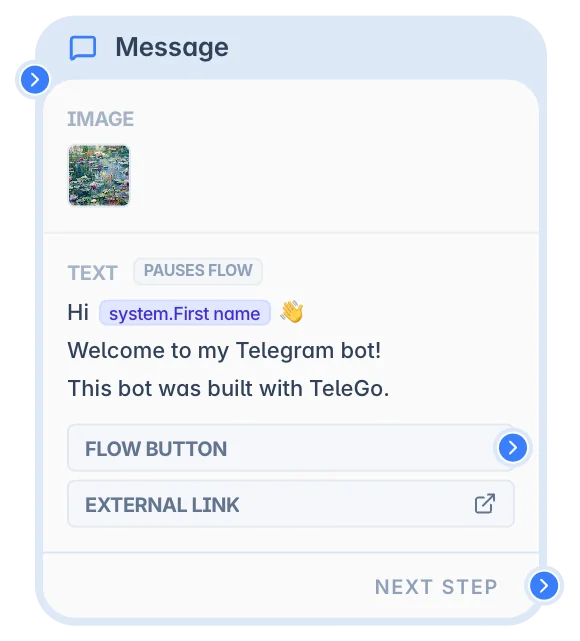
Configure cards and card order in the Message node settings panel.
What you can configure
In a Message node, you configure one or more cards that the bot sends to the user.
You can configure:
- Text cards — Send text with inline buttons, links, and Telegram Stars payment buttons. Supports variables and MarkdownV2 formatting.
- Question cards — Ask for user input and save the answer to a profile field. Supports validation (email, phone, number) and timeouts.
- Media cards — Send images, videos, audio, or files with optional captions.
- Gallery cards — Send up to 10 images as a single group.
- Menu cards — Show Telegram reply keyboard buttons at the bottom of the chat.
- Calendar Slot Picker cards — Let users book an appointment from your connected Google Calendar.
- Go Next Step — Whether the scenario continues automatically after the cards are sent. Turn off when this message should end the flow unless the user chooses a branch.
- Protect Content — Prevent users from forwarding or saving the message.
- Replace Previous — Replace or delete previous bot messages before sending new ones.
Text Card
- Content: Text with MarkdownV2 and variable interpolation. Supported syntax:
{%first_name%}— system/CRM/UTM field. Removed from text when the value is missing (blank fallback).{@support_phone@}— workspace global variable.{{var.score}}or{{var.score+}}— scenario variable. Removed from text when the value is missing (blank). Both forms render the same value. To show the literal placeholder text, use{{!var.score}}.
- Buttons: Inline buttons for flow branching (Flow), external links (URL), or Telegram Stars payments (Payment).
- Button Style: Optional Telegram button color: default, primary, success, or danger.
Question Card
- Mode: Open text input or multiple-choice options.
- Save To: Where the user's response is stored. Two modes:
- Catalog field — saves the answer to a profile field (e.g.,
email,phone, custom CRM fields). The value is synced to the CRM. - Scenario variable (
var.*) — saves the answer directly to a scenario variable, bypassing the CRM. Use keyscorefor session scope (var.score), or keyscore+for persist scope (var.score+, survives/start).
- Catalog field — saves the answer to a profile field (e.g.,
- Validation: Enforce formats (Email, Phone, Number, Date, or a custom Regex pattern).
- Timeout: Time limit for the user to answer.
Regex validation
Choose Regex under Expected Type to accept only answers that match a custom pattern.
- Pattern: A bare regular expression body — do not wrap it in
/slashes/and do not add flags like/i. Up to 512 characters. The editor flags syntax errors and unsafe patterns (ones that could hang on certain input) inline before you can publish. - Match type: Substring by default — the pattern only needs to match part of the answer. Anchor with
^and$to require the pattern to match the whole answer. - Ignore case: Off by default (case-sensitive). Turn it on to match regardless of letter case.
- Custom Error Message: Shown when the answer doesn't match — same field used by the other validation types.
Example
Pattern ^[A-Z]{2}\d{4}$ with Ignore case off accepts an answer like AB1234 but rejects ab1234 or AB123.
Common mistake
Typing /pattern/i as the pattern does not turn on case-insensitive matching — the editor takes the pattern literally, slashes and all. Use the Ignore case toggle instead.
INFO
If a published pattern is missing, invalid, or unsafe, the runtime does not trap the user — it accepts the answer as-is and logs a redacted warning (no pattern or answer content) so you can fix the scenario. See Condition Node for how the equivalent Condition rule behaves instead — it falls back to No Match.
Media Cards (Image, Video, Audio, File)
- Source: URL, uploaded asset, or From variable — a variable resolved when the message is sent: a system name such as
ai_last_answeror a path such asvar.image_url(the same names you use in{%...%}macros, without the braces). Use this to send a media file whose URL was saved to a variable earlier in the flow. - Caption: Optional text attached to the media.
INFO
A variable source is resolved at send time, not when you save the scenario. If the variable is empty when the message node runs, the card is skipped (same as leaving a static URL empty) — the flow continues normally. If the variable holds something that isn't a usable image reference (wrong type of value), the node fails explicitly so the mistake is visible instead of silently sending nothing.
WARNING
Gallery cards do not support variable sources yet — only single media cards (Image, Video, Audio, File) do.
Gallery Card
- Items: Up to 10 images sent as a single group.
Menu Card
- Reply Keyboard: Persistent buttons shown at the bottom of the Telegram screen.
- Button Types: See the table below.
- Button Style: Optional Telegram button color: default, primary, success, or danger.
- Settings: Resize Keyboard, One Time Keyboard.
Text card buttons
Choose Edit buttons in the settings panel to open the visual button editor. Add button creates a button in its own row. Drag its handle beside another button to share a row, or between rows (including above the first row) to give it a separate row. Each row supports one to four buttons; empty rows disappear automatically. Select a button to edit its text, action, aliases, and color. For a Flow button, use Go to node to choose its destination with the same searchable selector as Next step. No transition clears its connection. You can also use Move to row, Move left, and Move right without dragging.
The settings panel previews the saved rows, colors, and action types. Apply saves the buttons, layout, and selected Flow destinations together. The editor closes only with Apply or Cancel: if you changed something, Cancel or Esc asks before discarding the changes. Telegram controls actual button widths and may truncate long labels. Existing messages keep their automatic layout until you apply the editor. The graph node keeps vertical button outputs in the saved row order, read left to right and top to bottom. Outputs move with their buttons while keeping existing connections unless you change the Flow destination.
Text cards support three inline button actions:
| Action | What it does | Creates a branch? |
|---|---|---|
| Flow | Routes the user to another node when clicked. | ✅ Yes |
| URL | Opens an external link. | ❌ No |
| Payment | Starts a Telegram Stars payment for the selected product. | ❌ No |
For Payment, select a Payment product created under Workspace Settings → Products & Payments. The button stores only the product selection; price and provider settings come from the product catalog.
WARNING
Payment buttons work only in private conversations between the user and the bot. If a user taps the button inside a group or channel, the bot shows an alert and does not open the payment dialog.
Menu card buttons
Menu cards show a reply keyboard with the following button kinds:
| Kind | Label in editor | What it does | Routing |
|---|---|---|---|
| Flow | Flow | Regular reply keyboard button | ✅ Routes to connected node |
| Location | Location | Prompts user to share GPS coordinates | ❌ No branch |
| Contact | Contact | Prompts user to share phone number | ❌ No branch |
| Mini App | Mini App | Opens a Telegram Mini App at the specified URL | ❌ No branch |
INFO
web_app buttons require an HTTPS URL.
INFO
Payment buttons are configured on Text cards, not Menu cards. Menu buttons are reply-keyboard controls; payment buttons start an invoice flow and do not create a menu branch.
Calendar Slot Picker
Use this card to let users choose an available date and time from your connected Google Calendar directly inside Telegram. It can:
- Show available dates and time slots.
- Always creates a Google Calendar event when the user confirms a slot.
- Show a reschedule prompt if the user already has an active booking.
- Optionally allow cancellation via a dedicated Cancelled output.
- Send appointment reminders.
- Branch through Booked, Cancelled (if enabled), No slots, and Error outputs.
INFO
Google Calendar must be connected before this card will work. Go to Workspace Settings → Integrations and follow the Google Calendar setup steps there.
For full setup details, see Calendar Slot Picker.
Payment Button
Payment buttons let users pay directly inside Telegram. They are added to a Text card as an inline button with action Payment.
Prerequisite: Create a product first under Workspace Settings → Products & Payments and enable at least one payment provider. Only active products appear in the button selector.
How to add a payment button
- Add a Message node.
- Add a Text card that explains the offer.
- Add an inline button and set its action to Payment.
- Select the Payment product.
Payment buttons belong to Text card inline buttons, not Menu buttons. Each payment button creates its own branch output handle on the Message node, just like a flow button.
What happens after the user taps the button
- Success — the user completes the payment. The scenario continues through the payment button's output handle.
- Failure — the invoice could not be created, or the payment was declined. The scenario also continues through the same output handle. Connect a Condition node downstream to check whether the payment went through and show an appropriate message.
- Pending — the invoice is shown and the scenario is paused while the user decides whether to pay. There is no separate "Pending" branch.
Connect the payment button's output handle to a Condition Node that checks whether the product was paid. The Next link is not used for payment routing.
Invoice deduplication. If the user taps the payment button multiple times before paying, only one invoice is created per session per product within a 1-hour window. After 1 hour without payment, the next tap creates a fresh invoice.
Important limitations
- Private chats only. Payment buttons work only in private conversations between the user and the bot. In groups or channels the button shows an alert and does not open the payment dialog.
- No automatic refund handling. Refunds are processed manually (Telegram Stars via Fragment, Stripe via the Stripe Dashboard). The bot does not receive a refund notification, so the payment status stays
Paidafter a refund. Revoke access manually if needed.
Output and behavior
Normal flow
Cards are sent from top to bottom. If Go Next Step is enabled, the scenario continues through the connected Next path after the cards finish. If it is disabled, the node stops there unless the user takes a branch such as pressing a button or answering a question.
Branching
- Inline Buttons (Text card): Transition immediately to the connected node on click.
- Payment Buttons (Text card): Start the Telegram Stars payment flow for the selected product. They do not create flow link handles.
- Question Options: Each option can lead to a unique branch.
- Question Timeout: If a question has a timeout, you can connect a separate timeout branch. This is an automatic timeout path, not a user-action branch.
- Menu Buttons (Step kind): The bot pauses and waits for the user to press one, then routes to the connected node.
Cards after a branching card don't get sent
Cards are sent top to bottom in one pass — but a card that actually branches to another node stops that pass permanently, not just temporarily. Once the user acts on it, the flow jumps to whatever node is connected to that specific branch — it never comes back to send the rest of this node's cards.
A card only branches away like this if it has:
- A flow or payment button (Text card),
- A question in options mode (button-choice answer),
- A Menu card with Step buttons.
Everything else just sends and moves on to the next card normally — including:
- A Text card whose buttons are plain links (no flow/payment action),
- A question in open mode (free-text answer saved to a field, no per-answer branch),
- Media, Calendar, and other non-interactive cards.
So you can stack several non-branching cards — or one branching card followed by non-branching ones before it. What you can't do is put a second card after a branching card and expect it to show once that branch is taken: the scenario has already left this node for a different one by then.
TIP
Need more than one decision point? Give each branching card its own Message node, connected via Next. To the end user in Telegram there's no visible difference — it's the same conversation either way.
Menu Card flow
- The reply keyboard is attached to the last Text card message (no separate message is sent).
- If the menu has Step buttons (
flow), execution pauses and waits for user input. - When the user presses a Step button, the bot routes to the node connected to that button's output port.
- Non-routable buttons (
location,contact,web_app) trigger a Telegram-native prompt. After the user responds, the flow continues without branching. - The menu keyboard is displayed as long as it is active —
one_time_keyboard: truehides it after one press.
WARNING
If a Menu card contains only non-routable buttons, make sure Go Next Step is enabled so the flow continues after the user responds. Otherwise the conversation may stop unexpectedly.
Examples
Example 1: Welcome message
Goal: Personal greeting with a logo.
Setup: Add an Image card (logo) and a Text card with "Welcome, {%first_name%}!". Enable Go Next Step.
Result: User receives the image followed by the personalized text.
Example 2: Collect email and show menu
Goal: Collect a user's email and offer an interactive menu.
Setup:
- Add a Question card (Mode:
open), set Validation toemail, and Save Touser_email. - Add a Text card ("What are you interested in?"), then a Menu card with Step buttons: "Products", "Support", "About Us". Connect each button's output port to a separate node.
Result: The bot asks for a valid email, saves it to the profile, then shows the keyboard and waits. The user taps a button — the bot routes to the connected node automatically.
Example 3: Consultation booking
Goal: Let users book a 30-minute slot and receive a confirmation.
Setup: Add a Calendar Slot Picker card. Set the Event title to Consultation with {%first_name%}. Connect Booked to a Text card: You're booked for {%calendar.date%} at {%calendar.time%}. See you then!. Connect No slots to a Text card: "No times available right now — please check back tomorrow."
Result: The user picks a slot, the bot creates the Google Calendar event, and sends a personalized confirmation.
Example 4: Optional paid add-on
Goal: Let interested users buy an add-on from the message.
Setup: Add a Text card describing the add-on. Add one button with action Payment and select the add-on product. Add a second Flow button like "No thanks" if users should be able to skip. After the Message node, add a Condition node to check whether the payment was completed before granting access.
Result: Users who tap the payment button see the Telegram Stars payment flow. Users who skip continue through the connected Flow branch. Paid users pass the Condition check and receive the add-on.
Example 5: Collect GPS location
Goal: Ask the user to share their location.
Setup: Add a Menu card. Add a Location button ("📍 Share my location") and optionally a Step button ("Skip"). Connect the "Skip" button to a next node.
Result: If the user shares location, coordinates are saved to {%location.latitude%} / {%location.longitude%} and the flow continues. If they skip, the flow goes to the skip node.
Example 6: Open a Mini App
Goal: Launch a Telegram Mini App from the keyboard.
Setup: Add a Menu card. Add a Mini App button, enter the HTTPS URL of your app.
Result: User taps the button — Telegram opens the Mini App inline without leaving the chat.
Common pitfalls
User clicks a Step button but nothing happens → The button's output port is not connected to another node. Fix: Drag the button's output port to a destination node in the editor. Prevention: Always verify connections before publishing.
Menu keyboard doesn't appear in Telegram → The Menu card must follow a Text card; the keyboard attaches to the last text message. If the last card is a media card, the keyboard has no message to attach to. Fix: Move the Menu card after a Text card.
Users see literal
{%first_name%}instead of their name → The variable hasn't been set yet. Fix: Use an earlier Question or Actions node to populate the field, or add a Condition node to check before displaying."No available dates" in Calendar Slot Picker → Google Calendar is disconnected, booking defaults (working hours / weekdays) have not been saved, or all slots in the date range are occupied. Fix: Open Workspace Settings → Integrations → Calendar, confirm the status is Connected, and verify that working hours and at least one allowed weekday are saved.
Calendar slots don't match what I see in Google Calendar → The wrong calendar is selected, or all-day events are blocking slots. Fix: Check the selected calendar in Workspace Settings → Integrations → Google Calendar. All-day events block overlapping slots — move them to a different calendar or delete them if they are placeholders.
"Error" output fires after the user picks a slot → The Google Calendar connection was lost or the chosen slot was taken by someone else before the user confirmed it. Fix: Reconnect the calendar in Workspace Settings → Integrations → Google Calendar if the connection is broken. If the slot was taken, the user can simply start the booking flow again — availability is checked fresh every time. Prevention: Keep the calendar connection active.
Payment button product dropdown is empty → No active product exists in the workspace. Fix: Create or restore a product under Workspace Settings → Products & Payments, then select it in the button settings. Prevention: Prepare products before building payment messages.
Mini App button URL error → The
web_app_urlfield is empty or contains a relative URL. Fix: Enter the full HTTPS URL of your Mini App (e.g.https://myapp.example.com).Regex validation always accepts every answer → The pattern is empty, has a syntax error, or was flagged as unsafe, so the runtime fails open. Fix: Reopen the Question card — the editor shows the same inline error. Prevention: Publish only after the inline pattern error clears.
FAQ
Q: Multiple messages at once?
A: Yes, each card in the node is sent as a separate Telegram message.Q: What is the difference between
delete_contentandreplace_content?
A:delete_contentremoves old message output and sends a new message.replace_contentedits the previous message in place (Text cards only), which avoids extra "new message" notifications.Q: Can I combine inline buttons and a reply keyboard?
A: Yes — use a Text card with inline buttons AND a Menu card in the same node.Q: How many buttons can I have?
A: Up to 10 buttons per Menu card across all kinds.Q: What happens if the user types text instead of pressing a Step button?
A: The runtime matches the typed text against Step button labels (case-insensitive). If it matches, routing proceeds normally. If not, the text is ignored and the bot continues waiting.Q: Do non-routable buttons (location, contact, etc.) pause execution?
A: No. After the user interacts with them, execution continues to the next step without branching.Q: Does a question timeout count as a user action for loop protection?
A: No. Timeout branches continue automatically, so loops that rely only on timeouts, delays, or schedules are treated as unsafe.Q: Where are location coordinates stored?
A: In{%location.latitude%}and{%location.longitude%}— accessible in subsequent nodes via variables.Q: Can I put a payment button in a Menu card?
A: No. Use a Text card button with action Payment. Menu buttons are reply-keyboard controls and do not start invoice flows.Q: Can I have multiple Calendar Slot Picker cards in one scenario?
A: Yes, but the bot stores one active booking context per user per bot. When a new booking is confirmed,{%calendar.*%}is updated to that latest booking.Q: What should I connect to the "No slots" output?
A: Connect it to a Text card that says something like "No slots available right now — please try again tomorrow." You can also add a Delay node and loop back, but limit retries to avoid an infinite loop.Q: Does the created calendar event add the user as an attendee?
A: No. The event is created on your Google Calendar only. The user is not added as an attendee, but you can send them the{%calendar.event_link%}variable — it's a public "Add to Google Calendar" link they can tap to save the appointment to their own calendar.Q: Can I test a Regex pattern against a sample answer before publishing?
A: Not yet — the editor validates pattern syntax and safety inline, but there is no sample-answer tester. Use anchors (^/$) and the rendered example hint to double-check the pattern shape.
Related nodes
- Start Node — The flow entry point.
- Condition Node — Branch based on variables, calendar booking status, or payment status.
- Actions Node — Silent variable/tag updates.
- Integrations — Connect Google Calendar and configure booking defaults.