
Appearance
Actions Node
TL;DR:
- What: Perform silent background tasks — update variables, add or remove tags, manage Telegram group membership, stop sessions in other bots, trigger webhooks, track conversions.
- When: You need to change user state, segment users, clean up messages, or call external systems without showing anything to the user.
- Result: The bot executes all configured actions in order and immediately continues to the Next node.
What it does
The Actions node is the silent worker of your scenario. It performs state-changing operations in the background — updating a subscriber's profile, adding a tag, banning a user from a group, or tracking a conversion — without sending any message to the user.
Actions are executed sequentially from top to bottom. If one action fails (for example, a Telegram API error), the bot logs the problem and continues with the next action. The scenario never crashes because of a failed action.
When to use it
- ✅ Save user data — Store answers into custom fields or global variables.
- ✅ Segment users — Add or remove tags like
lead,customer, orpaid_userfor targeting and filtering. - ✅ Count or score — Increment loyalty points, decrement remaining attempts, or update numeric counters.
- ✅ Manage dates — Extend a subscription deadline or record a "last visited" timestamp.
- ✅ Control Telegram membership — Ban, unban, approve, or decline join requests in groups and channels.
- ✅ Clean up UI — Delete temporary messages or keyboard menus sent earlier in the flow.
- ✅ Cross-bot control — Stop a user's active session in a different bot without interrupting the current flow.
- ✅ Notify external systems — Trigger webhooks, send emails, or call external APIs via Sync HTTP.
- ✅ Track conversions — Log conversion events (such as purchases or sign-ups) with optional revenue value.
When NOT to use it
- ❌ Sending messages — Use a Message node.
- ❌ Asking questions — Use a Question card inside a Message node.
- ❌ Payments — Use a Message node with a payment button. There is no payment action in the Actions node.
- ❌ Branching logic — Use a Condition node.
In the UI
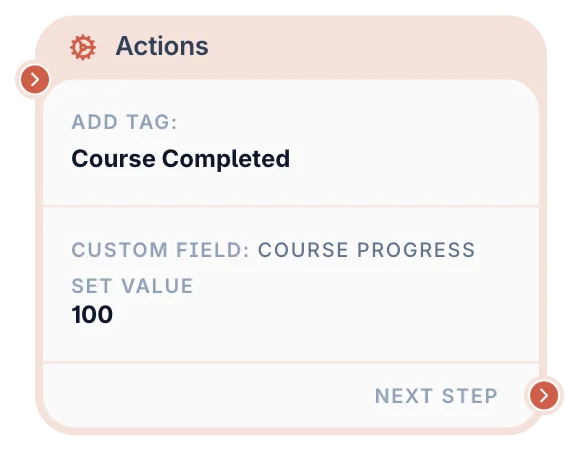
Actions are configured as an ordered list in the right-side settings panel. Each action appears as its own card that you can expand, configure, and reorder.
What you can configure
In an Actions node, you build a list of 1 to 50 actions. Each action performs one discrete task. The available action types are:
Variable actions
Modify values stored in the subscriber's profile.
- Target types:
- Custom field — Organization-specific fields you created.
- Global variable — Shared variables across your workspace.
- UTM parameter — Traffic source data (for example,
utm_source).
- Operations:
- Set — Overwrite with a new value.
- Clear — Remove the value entirely.
- Increment — Add a number to numeric fields, or add time units (months, days, hours, minutes, seconds) to date or datetime fields.
- Decrement — Subtract from numeric fields, or subtract time units from date or datetime fields.
Tag actions
- Add tag — Attach a label to the user's profile.
- Remove tag — Detach a label from the user's profile.
Subscription control
- Subscribe user — Re-enables broadcast delivery for the user. Use this to resume automated messaging if the user was previously excluded. This does not affect billing or paid tiers.
- Unsubscribe user — Disables broadcast delivery for the user. The user will be excluded from automated messages but can still interact with the bot. This does not affect billing or paid tiers.
Bot flow control
- Stop another bot — Terminates the active session of the current user in a different bot (selected from your workspace). The current bot flow continues to the Next node normally.
WARNING
You cannot stop the current bot's own session with this action. The target bot must belong to the same workspace.
- Human Handoff — Signals that this conversation requires a human operator. The bot always marks the user with an attention flag visible in the CRM and emits the handoff event used by analytics and realtime UI updates. The scenario continues to the Next node after the action fires — handoff does not pause the flow.
How it works:
- The runtime always emits the CRM handoff event so the user gets the Needs Attention flag even when Telegram operator notifications are disabled.
- Repeat protection (default: on, 10 minutes; set in the bot's Human Handoff settings or per step in Custom setup, from 30 seconds to 10 minutes, or off). The first trigger sends the alert immediately; repeated triggers from the same Human Handoff step for the same subscriber within the interval do not send another Telegram alert, but they still update the CRM flag.
- By default the step uses the bot's settings: operators are notified via Telegram only if Telegram Operator Notifications are enabled in the bot's Customization settings and eligible operators are selected there. Turn on Custom setup in the step to choose who gets this step's notification and write its own text — for example a ready request: "New consultation request — Name, Phone, Goal" with the client's answers inserted from the
{}menu (client answers, workspace variables and the handoff variables). People chosen in the step get the notification even when the bot's notifications are off. Left empty, recipients and text fall back to the bot's settings. Set up notifications links your Telegram, checks that you pressed Start in the bot and adds you to the operators without leaving the editor. - The CRM shows an amber "Needs Attention" badge. An authorized team member resolves the handoff from the user's detail view. On the canvas, an Actions node shows an amber
!when its Human Handoff notification has no recipients in the step or the enabled bot settings. Hover over it for the setup hint. Set up notifications is near the top of the action settings, before Custom setup. The warning disappears when recipients are configured. - After the interval expires, the next trigger can send a new Telegram alert again. If the client tapped a button right before the step, the notification's last message is that button's label.
- In a test run the notification goes only to you (the tester), marked
🧪 [TEST]— so you can check the request text. Operators are not notified and the CRM flag is not set.
TIP
Place this action at the point in your flow where you detect the user needs help — before or after a fallback message. It is safe to include it in every fallback branch; the 10-minute deduplication window prevents operator notification spam.
Telegram admin actions
These actions manage group or channel membership for the current user. The bot must be an administrator in the target group or channel.
TIP
The action always targets the user who triggered the scenario. You specify the group or channel, and the bot acts on that user.
- Ban user from chat — Permanently bans the user.
- Unban user in chat — Removes the ban.
- Approve join request — Approves a pending join request.
- Decline join request — Declines a pending join request.
Required field: Telegram Chat ID — the numeric ID of the target group or channel (for example, -1001234567890).
INFO
See How to get a group or channel ID for step-by-step instructions.
Delete message output
- Delete sent message — Deletes messages that were previously sent by a specific Message node. Useful for cleaning up keyboard menus or temporary messages after the user responds.
Integration actions
- Webhook — Triggers an external HTTP notification. The runtime pushes a job to the queue; Laravel sends the actual request.
- Email — Sends an automated email via your configured provider. The runtime pushes a job to the queue; Laravel dispatches the email.
- Sync HTTP — Performs a real-time HTTP request during node execution and maps the response back into your variables.
- Conversion — Logs a conversion event (for example,
order_completedorform_submitted). You can optionally include a monetary value and currency code for revenue tracking.
INFO
Use Sync HTTP when you need to read the response and map it back into variables during the same node execution. Use Webhook for simpler fire-and-forget notifications.
See Actions Node — Sync HTTP for the full guide, including presets, testing, URL templates, and response mapping.
Lead score actions
- Add to lead score (
lead_score.add) — Adds a positive integer (1–2,000,000,000) to the user's lead score. Score is clamped at 2,000,000,000. - Subtract from lead score (
lead_score.subtract) — Subtracts a positive integer from the lead score. Result is clamped to 0 (never goes negative). - Set lead score (
lead_score.set) — Sets the lead score to an exact integer (0–2,000,000,000).set(0)is a valid explicit action, not a reset alias.
All score operations are atomic (executed via Lua in Redis) and are synced to PostgreSQL via the outbox for CRM display and backup. The current score is available in Message and Formula nodes as {%lead_score%} and as a subject in Condition nodes.
Output and behavior
- Next step behavior: The node has one output branch — Next. After all actions finish, the bot continues to the connected node.
- User-facing result: Nothing. The Actions node is invisible to the user.
- Side effects: Depends on the configured actions. Variables, tags, subscriptions, Telegram memberships, and external systems may be updated.
- Important limits: You can add up to 50 actions per node. Actions run sequentially in the order shown.
Examples
Example 1: Mark user as lead
Goal: Tag a user as a lead when they reach a certain point. Setup:
- Add tag →
new_lead.
Result: User is tagged for follow-up campaigns.
Example 2: Loyalty program update
Goal: Add points after a user completes a task.
Setup:
- Increment variable → Target: Custom field
loyalty_points, value:50.
Result: User's current score increases by 50 points.
Example 3: Auto-approve a paid group member
Goal: When a user completes payment, automatically approve their join request to a private Telegram group.
Setup:
- Approve join request → Chat ID:
-1001234567890. - Add tag →
group_member.
Result: The user is let into the private group instantly, without any manual admin action.
Example 4: Cross-bot session cleanup
Goal: When a user upgrades to a paid plan in Bot A, stop their trial onboarding session in Bot B.
Setup:
- Stop bot → Select your trial onboarding bot.
- Add tag →
paid_user.
Result: Bot B stops sending trial messages to this user; they continue through Bot A's paid flow.
Example 5: Grant paid access
Goal: Give a user a tag only after their payment is confirmed.
Setup:
- Add a Message node with a Payment button and select your paid access product.
- Connect the Message node to a Condition node that checks whether the payment status for that product is Paid.
- Connect the Match branch to an Actions node that adds the
paid_usertag. - Connect the No Match branch to a Message node explaining that payment is required.
Result: Only users with a confirmed payment receive the paid_user tag. Everyone else is shown the retry or support message.
Common pitfalls
Variable not updating in later nodes → You saved to the wrong target type (for example, a custom field instead of a global variable) or the Actions node was bypassed by a branch. Fix: Verify the variable target type (custom field, global, or UTM) and confirm the flow actually passes through this node. Prevention: After publishing, test your scenario in Telegram and check the user profile in the CRM to verify variables were updated correctly.
Tag not affecting logic in a Condition node → The Actions node is placed after the Condition node in the flow. Fix: Move the Actions node before the Condition check. Prevention: Remember that nodes execute in the order they are connected, not in the order they appear on the canvas.
Telegram admin action runs but nothing changes → The bot is not an administrator in the target group or channel, or the Chat ID is wrong. Fix: Add the bot as an admin first, then verify the Chat ID is numeric and includes the
-100prefix if required. See How to get a group or channel ID.Stop Bot has no effect on the other bot → The user had no active session in the target bot at that moment. Fix: This is expected behavior — Stop Bot is a no-op if there is no active session to stop.
Sync HTTP response not mapping to variables → The mapping rule targets a key that does not exist in your whitelist, or the JSON path in the source field does not match the response structure. Fix: Verify the mapping source path and ensure the destination key is an allowed system, custom, or global field.
FAQ
Q: Can I add multiple actions in one node?
A: Yes, up to 50 actions per node.Q: Can I overwrite an existing variable?
A: Yes. The Set operation overwrites whatever was previously stored.Q: What happens if one action fails?
A: The error is logged and the flow continues with the next action. Your scenario never crashes because of a failed action.Q: What happens if a Telegram admin action fails (bot not admin, etc.)?
A: The error is silently logged and the flow continues. Your scenario will never crash because of a failed admin action.Q: Does Stop Bot stop the current bot?
A: No. Stop Bot stops a different bot's session for the current user. The scenario you're in always continues to its Next node.Q: Can I approve join requests automatically without manual admin work?
A: Yes. Use the Approve join request action after the user meets whatever condition you require (payment, quiz completion, etc.).Q: When should I use Sync HTTP instead of Webhook?
A: Use Sync HTTP when you need to read the response and map it back into variables during the same node execution. Use Webhook for simpler fire-and-forget notifications.Q: Can I subscribe a user back after unsubscribing?
A: Yes. You can use the Subscribe user action to re-enable broadcast delivery. This is only needed if you previously used the Unsubscribe action on them. It is not related to paid subscriptions or billing.
Related nodes
- Message Node — Send messages and add payment buttons before you check results in a Condition or update state in Actions.
- Condition Node — Check variables, tags, and payment status set by Actions.
- Actions Node — Sync HTTP — Extended guide for presets, testing, request tokens, and response mapping.
- How to get a group or channel ID — Step-by-step instructions for finding Telegram chat IDs.