
Appearance
AI Agent Node
TL;DR:
- What: Use AI to generate a text answer inside a scenario.
- When: You want AI-driven support, FAQ, assistant, or qualification flows.
- Result: The node prepares the AI answer and saves it into variables. It does not send anything to the user by itself.
What it does
The AI Agent node runs an AI request inside your scenario. It does not automatically send a user-facing reply on its own. Instead, it reads input from the current conversation or a selected field, optionally searches Knowledge Bases, optionally uses memory, saves the result into system variables, and moves to the next step in the flow.
This makes it easy to show the answer in a following Message node or route the flow based on the latest AI outcome if needed.
When to use it
- ✅ Support and FAQ — Answer product questions using your documentation.
- ✅ AI assistant — Build a conversational bot that can handle follow-up questions.
- ✅ Qualification — Process user input with AI before routing to a human.
- ✅ Content generation — Prepare text that a later Message node sends.
When NOT to use it
- ❌ Sending messages directly — Use a Message node after the AI Agent to send the answer.
- ❌ Logic branching without AI — Use a Condition node for data-driven routing.
- ❌ Simple static replies — Use a Message node when no AI generation is needed.
In the editor
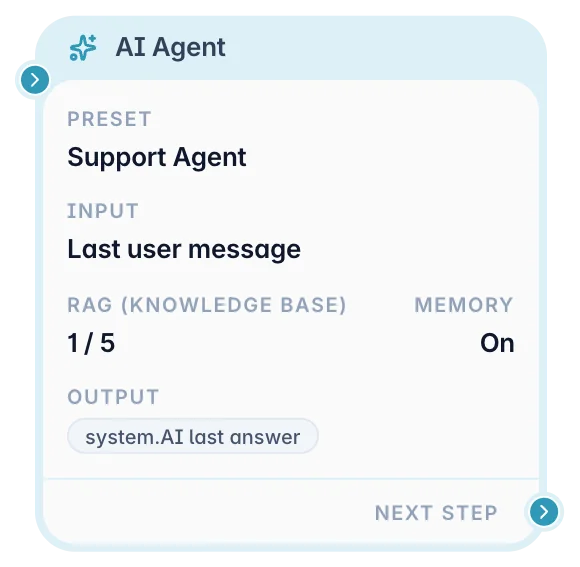
What you can configure
In an AI Agent node, you configure how the bot sends an AI request, what context it can use, and where the result goes next.
You can configure:
- Preset — Choose the AI preset that controls the model, tone, and main instructions.
- Input — Choose whether the AI waits for a new user message, uses the last user message, or reads from a saved field.
- RAG / Knowledge Base — Select which Knowledge Bases the AI can search before answering.
- Memory — Decide whether the AI can use recent conversation turns or persistent facts.
- Output — Save the AI result into system variables for later nodes.
- Limits & Safety — Control answer length, timeout, and input size.
- Typing Indicator — Show Telegram typing while the AI request is running.
- Next Step — Choose where the flow continues after the AI result is prepared.
- On error — Optional second output: where the flow goes when the request does not succeed (see Handling errors).
Preset
Choose which preset this node should use. If you leave it empty, the node may fall back to the workspace default preset. Selecting a preset explicitly is the safest option when you want predictable behavior.
The preset controls the model, tone, and main instructions. If the AI sounds wrong, this is one of the first places to check.
- Use a support-style preset for FAQ and help flows.
- Avoid reusing one vague preset for every scenario.
Input
You can choose where the AI reads the main input from:
- Wait for user message — Pauses the flow and waits for the user to send a message, then passes it to the AI. Use this to build a self-contained conversational loop without a separate question card.
- Last user message — Uses the most recent message already in the current context. Best for conversational bots when the message is already available.
- Field — Useful when you want the AI to process a saved value instead of the latest message.
- Scenario variable (
var.*) — Reads the value from thevar.*namespace. The node looks up the persist store first, then falls back to the session store for the same key. Use this when the input is calculated by a Formula node or saved from a previous Question card usingvar.*mode.
Good rule: If the node should answer the user directly and loop back, choose Wait for user message. If you want a single-pass response to what the user just said, choose Last user message. If the node should work on already collected data, choose Field or Scenario variable.
Scenario variables in the system prompt
When the current session has any var.* or var.*+ values set, the AI Agent node automatically adds a ## Session Variables block to the system prompt before sending the request to the AI provider. This gives the AI direct access to all scenario variables without you having to copy them manually into the preset instructions.
Example of the injected block:
### Videos and YouTube links

Turn on **Understand videos and YouTube links** (Chat mode) to let the AI answer about a video:
- **A video sent in Telegram** — up to 5 minutes and about 14 MB.
- **A public YouTube link** in the message — the AI watches the first 10 minutes.

The user's text (or the video caption) is the question, e.g. "What is this video about?" or "List the key points". Without a question the preset instructions decide what to do.

Requirements and costs:
- Works only with a **Gemini** preset. With another model the node reports an error.
- Video uses many more AI tokens than text: roughly **100 tokens per second** of video (about 30,000 for a 5-minute video, 60,000 for 10 minutes of YouTube).
- Private or age-restricted YouTube videos can't be watched.
- With the option off, a video's caption is treated as plain text and the video itself is ignored.

## Session Variables
score: 42
user_level: gold
quiz_done: true
This is especially useful for personalized responses — the AI can reference the user's score, level, or preferences without extra prompt engineering on your side. If no variables are set, the block is omitted.
Conversational loop with Wait for user message
Use Wait for user message when the AI Agent should pause the scenario and wait for the user’s next message.
Common setup:
- Message node sends: "Ask your question."
- AI Agent uses Wait for user message.
- Message node sends
{%ai_last_answer%}. - The Message node’s next step returns to the same AI Agent node.
This creates a simple AI chat loop without adding a separate Question card.
RAG (Knowledge Base)
Enable this if the AI should use your Knowledge Bases. You can select specific Knowledge Bases for this node. This is useful when one scenario should only use product docs and another should only use billing or policy content.
TIP
It is usually better to connect one relevant Knowledge Base than several loosely related ones.
WARNING
If RAG is enabled but the selected Knowledge Bases do not contain the answer, the AI can still sound generic.
Memory
Enable memory if the AI should use recent conversation context or remembered facts. This helps when users ask follow-up questions or the assistant needs to stay aware of recent context.
The memory block has three options:
- Use long-term facts — Lets the AI use facts saved about the user.
- Use recent session turns — Includes the last messages from the current conversation.
- Persist AI answer to long-term memory — Saves useful AI output for future conversations.
Important: recent session turns are session-scoped, while long-term facts can be reused later. If memory is enabled but all three sub-options are off, the node effectively gets no memory benefit.
Output
The node writes its result into system variables for later steps in the scenario.
The most common pattern is:
- AI Agent prepares the answer.
- Message node sends
{%ai_last_answer%}.
This pattern gives you more control than sending the answer immediately. It also makes debugging easier, because you can inspect what the AI produced before deciding how to show or use it.
Limits & Safety
These settings help control answer length, request timeout, and input size. You usually only touch these if the node is too verbose, too slow, or too expensive. For most cases, start with the defaults and only tighten limits when you see a real problem.
Typing Indicator
You can enable Show typing during generation. When enabled, the bot shows Telegram typing while the AI request is running. This is useful when the provider call takes a noticeable amount of time or you want the conversation to feel responsive.
Use it when the AI step is visible to the user. If the node is doing background-like work before another branch, typing may be unnecessary.
Latest execution info
Use this block to debug the last AI request from this node.
Possible outcomes:
ok— the AI request completed normally.blocked— the request was refused by safety or policy rules.limit— quota, billing, or rate limit was reached.error— provider or technical error.timeout— the request took too long.
To react to a failure, connect the On error output (see below). For finer branching (for example, "limit" vs "refused"), you can still place a Condition node and check the AI outcome.
Handling errors
The node has two outputs:
- Next step — the request succeeded (
ok). - On error — the request did not succeed:
blocked,limit,errorortimeout.
Connect On error to a Message that tells the user what happened, for example "Sorry, I can't answer right now. Please try again in a minute." — and optionally lead back to the question.
| Situation | On error connected | On error not connected |
|---|---|---|
| Refused by the provider's safety filter, unsupported photo, limit, provider error, timeout | Goes to On error | Continues to Next step with an empty result |
| Setup problem: preset deleted or disabled, AI turned off for the workspace, workspace suspended | Goes to On error | The flow stops |
Two variables describe the result — insert them into a Message from the variables menu (AI outcome, AI error reason):
| Macro | Value |
|---|---|
{%ai_last_outcome%} | ok, blocked, limit, error or timeout |
{%ai_last_error%} | Empty on success, otherwise the reason: safety (refused by the provider's safety filter), unsupported_input (a photo or file the model can't use), limit (AI tokens or rate limit), timeout, error (provider or technical error), configuration (preset deleted or disabled, AI turned off, model can't read this media) |
In variable fields (for example media From variable) write them without braces: ai_last_outcome, ai_last_error. To branch on the outcome use the Condition rule AI Outcome. The reason is a code, not a text for end users — handy while testing ("Error: {%ai_last_error%}") or for support.
Output and behavior
When a user reaches an AI Agent node:
- The node gets the input text.
- It adds preset instructions, optional Knowledge Base context, and optional memory.
- It sends the request to the selected AI provider.
- It saves the result into system variables.
- The scenario continues to the next node.
- Next step behavior: The bot follows Next step when the request succeeds and On error when it fails (if connected — see Handling errors).
- User-facing result: Nothing by default. The node is silent. Users see the result only if a following Message node sends it.
- Side effects: Updates AI-related system variables and may write to long-term memory if configured.
WARNING
The AI Agent node does not send the answer to the user by itself. In a normal chat flow, place a Message node after it and send {%ai_last_answer%}.
Examples
Example 1: Answer one user question
Goal: Answer one user question with AI.
Setup: Add a Message node that asks for a question, then an AI Agent using Last user message, then a Message node that sends {%ai_last_answer%}.
Result: The user gets an AI-generated answer in Telegram.
Example 2: Product support assistant
Goal: Build a product support assistant using your documentation.
Setup: Select a support preset, enable RAG, choose the relevant Knowledge Base, optionally enable typing, and follow with a Message node that sends {%ai_last_answer%}.
Result: The bot can answer product questions using your own documentation.
Example 3: Conversational loop
Goal: Let the user keep asking follow-up questions.
Setup: Use Wait for user message, send {%ai_last_answer%} in the next Message node, then connect the flow back to the AI Agent.
Result: The bot behaves like a simple AI chat assistant.
Common pitfalls
The node runs but nothing is sent to the user → AI Agent is silent by default. Fix: Add a Message node after it and send
{%ai_last_answer%}.The AI answer is generic → The preset or selected Knowledge Bases may be too broad or irrelevant. Fix: Choose a focused Knowledge Base and tighten the preset instructions.
The answer takes too long → The request may include too much context. Fix: Narrow the selected Knowledge Bases, reduce context, or enable the typing indicator.
The AI uses the wrong input → The input mode may not match the flow. Fix: Use Wait for user message for chat loops, Last user message for single-pass replies, and Field for prepared text.
FAQ
Q: Does this node send a message by itself?
A: No. It prepares the AI result. Use a Message node after it to send the answer.Q: Can I show typing while the AI request is running?
A: Yes. Enable the Typing Indicator option in the node settings.Q: Can I use different presets in different scenarios?
A: Yes. Each AI Agent node can use its own preset.Q: Can I use only specific Knowledge Bases in one node?
A: Yes. Select them in the node's RAG section.Q: Can the AI access scenario variables?
A: Yes. First, allvar.*andvar.*+values are automatically injected into the system prompt as a## Session Variablesblock — so the AI can reference them in its response without extra configuration. Second, you can use the Scenario variable input mode to pass a specific variable directly as the main input text.
Related nodes
- Message Node — Send the prepared AI answer to the user.
- Condition Node — Branch based on AI outcome, empty answers, or extracted values.
- Actions Node — Save, tag, or trigger follow-up behavior after the AI result.
Back to Nodes overview