
Appearance
Schedule Node
TL;DR:
- What: Wait for a specific point in time (for example, a webinar start or an appointment date) before continuing.
- When: You need an absolute calendar-based pause rather than a relative wait.
- Result: The bot either waits until the scheduled moment and follows the By schedule path, or immediately follows the Date/time passed fallback if the time has already gone by.
What it does
The Schedule node pauses a user's progress until a precise calendar date and time. Unlike the Delay node, which waits for relative durations like "2 hours", the Schedule node waits for an absolute moment — such as "May 20 at 14:30" or a date stored in a user variable.
It is an asynchronous step. When a user reaches the node, the bot evaluates the target date. If it is still in the future, the bot creates a deferred task and pauses the flow. If the date has already passed, the bot immediately follows the fallback path.
When to use it
- ✅ Event-based messaging — Send a message when a webinar, sale, or maintenance window starts.
- ✅ Appointment reminders — Resume the flow at a user-specific appointment time saved earlier.
- ✅ Birthday or anniversary greetings — Schedule a message for a date stored in the user's profile.
- ✅ Deadline handling — Pause until a cutoff time, with a fallback for users who arrive late.
When NOT to use it
- ❌ Relative waits — Use the Delay node for "wait 2 hours" or "wait until tomorrow at 09:00".
- ❌ Waiting for user input — Use a Message node with a Question card.
- ❌ Repeating events — Use Delay with allowed days or calculate the next date with a Formula node.
In the UI
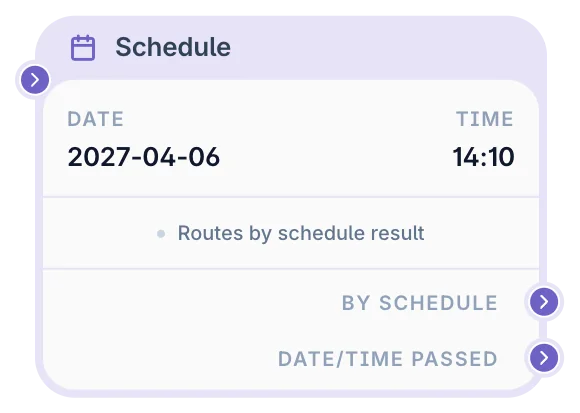
Use the Schedule settings panel to choose the mode and configure both output links.
What you can configure
In a Schedule node, you choose the exact calendar moment when the bot should continue the scenario.
You can configure:
- Schedule mode — Choose whether the date is fixed in the editor or read from a variable.
- Fixed date and time — Set the same scheduled moment for every user.
- Variable key — Use a saved user or scenario value as the scheduled date.
- By schedule path — Choose what happens when the scheduled time is reached.
- Date/time passed path — Choose what happens if the user reaches this node after the scheduled time has already passed.
Schedule modes
Fixed date and time
Use Fixed when every user should wait for the same moment.
Example: wait until the webinar starts on May 20 at 14:30.
From variable
Use From variable when each user has their own scheduled date.
Example: wait until the appointment time saved in appointment_date.
The variable must contain a valid date and time. Use the same date format created by Calendar Slot Picker, Formula, or your integration. If the value is missing, invalid, or already in the past, the bot follows the fallback path.
Output and behavior
When a user reaches a Schedule node, the bot checks the target date and time.
- By schedule — Used when the date is in the future. The bot waits until that moment, then continues through this path.
- Date/time passed — Used when the scheduled date has already passed. The bot does not wait and immediately follows this fallback path.
The node automatically detects whether the scheduled date and time is still in the future or has already passed.
WARNING
Always connect both paths. If one path is not connected, users may stop at this node silently.
INFO
The date and time you enter are interpreted in your workspace timezone. The system converts everything to UTC internally for precise execution.
Schedule vs Delay
Use Schedule when the wait is tied to a specific calendar date and time:
- wait until May 20 at 14:30;
- wait until a webinar starts;
- wait until a date stored in a variable;
- send a message on a user-specific appointment date.
Use Delay when the wait is relative to the moment the user reaches the node:
- wait 10 minutes;
- wait 2 hours;
- wait until tomorrow at 09:00;
- wait until the next allowed weekday.
Examples
Example 1: Webinar start message
Goal: Send a message when a webinar starts and handle users who arrive late.
Setup: Set Schedule mode to Fixed and choose the webinar start time. Connect By schedule to "The webinar is starting now" and Date/time passed to "The webinar has already started. Here is the replay or support link."
Result: On-time users wait for the event, while late users immediately receive the fallback message.
Example 2: Follow up at appointment time
Goal: Send a reminder at a user-specific appointment time.
Setup: Save the selected appointment time with a Calendar Slot Picker, then use a Schedule node in From variable mode with that saved date value. Connect By schedule to a reminder Message node and Date/time passed to a fallback Message node.
Result: Each user receives the reminder based on their own appointment date.
Common pitfalls
Message was sent at the wrong time → Your workspace timezone may not match the timezone you had in mind when setting the date. Fix: Check your timezone in workspace settings before configuring Schedule nodes.
Users kept the old scheduled time after I edited the node → The scheduled task is created when the user enters the node. Fix: This is expected behavior. The new date applies only to users who enter the Schedule node after your changes are published.
Users skip the wait and go straight to Date/time passed → The scheduled time was already in the past when evaluated in your workspace timezone, or the variable contains an invalid date. Fix: Verify the date is in the future and the variable value is correct.
Users get stuck and never resume → The By schedule port is not connected to any node. Fix: Ensure both output links are properly connected to destination nodes.
FAQ
Q: What happens if I change the date after users are already waiting?
A: Users already waiting keep the date that was active when they entered the node. New users use the updated date after publishing.Q: Can I use Schedule for repeating events?
A: No. Schedule is for one specific date and time. Use Delay with allowed days or calculate the next date before scheduling.Q: What happens if the scheduled time is already in the past?
A: The bot immediately follows the Date/time passed path.Q: Does Schedule use my workspace timezone?
A: Yes. Dates and times are interpreted using your workspace timezone.
Related nodes
- Delay Node — Wait for a relative amount of time, such as 2 hours or tomorrow at 09:00.
- Message Node — Send the reminder, event message, or fallback text after Schedule.
- Formula Node — Prepare or calculate a date value before using Schedule in variable mode.
- Condition Node — Check dates without pausing the flow.