
Appearance
Condition Node
TL;DR:
- What: Create "if/else" logic to route users down different paths based on rules.
- When: You need to check tags, variables, time, payment status, or booking status before deciding what happens next.
- Result: The bot follows either the Match branch or the No Match branch.
What it does
The Condition node is the "brain" of your bot. It evaluates rules against a subscriber's data — like variables, tags, payment status, or booking status — and routes the flow down one of two branches: Match or No Match.
You can combine multiple rules with All (every rule must pass) or Any (at least one rule must pass) logic. Evaluation is instant and invisible to the user.
When to use it
- ✅ Personalizing the journey — send different messages to new users vs. returning customers.
- ✅ Gating content — check if a user has a "verified" or "paid" tag before granting access.
- ✅ Validating payments — confirm a product is Paid or a subscription is still active.
- ✅ Scheduling logic — run different flows on weekdays vs. weekends, or during business hours.
- ✅ Checking bookings — remind users about upcoming appointments or skip the booking picker if they already have one.
- ✅ Handling AI results — branch based on whether the last AI Agent response was ok, blocked, or hit a limit.
When NOT to use it
- ❌ Reacting to live message content — the Condition node checks stored data, not what the user just typed. Use a Message node with a Question card first, then check the saved variable.
- ❌ Silent data updates — use an Actions node to set variables or tags without branching.
- ❌ Delaying or scheduling — use the Delay or Schedule nodes for time-based pauses.
- ❌ Sending messages — use a Message node to communicate with the user.
In the UI
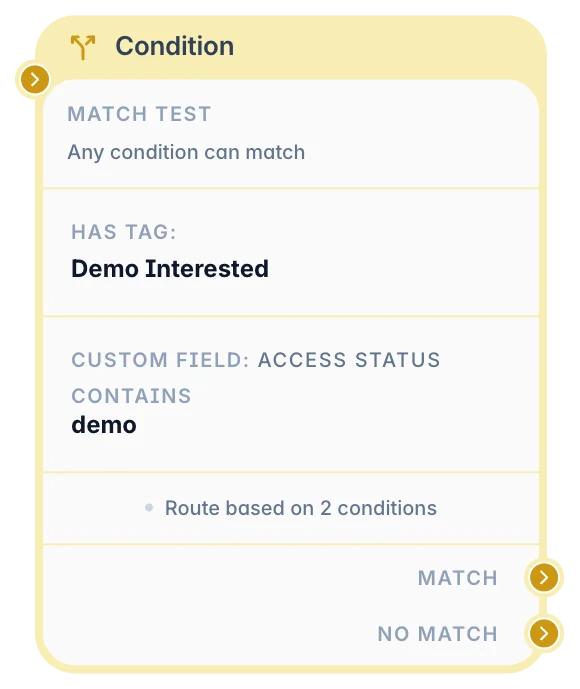
Use the Condition settings panel to select the matching mode and build the rule list.
What you can configure
In a Condition node, you define one or more rules and choose how they are combined.
You can configure:
- Matching Mode — All means every rule must pass (AND). Any means at least one rule must pass (OR).
- Rules — A list of 1 to 20 checks. The node supports seven rule types:
- Variable — Check a scenario variable (
var.*), custom field, global variable, system field (email, name, phone, subscribed), or UTM parameter. Text values support equals/contains and two regex operators — see Regex operators below. - Tags — Check if the user has or does not have a specific tag.
- Time & Date — Compare the current time, date, or weekday against a fixed value.
- Telegram Subscription — Check if the user is a member of a specific group or channel.
- AI Outcome — Check the result of the most recent AI Agent node.
- Payment Status — Check if a product is Paid, Failed, or has an active subscription.
- Booking Status — Check if the user has an active appointment or one coming up soon.
- Variable — Check a scenario variable (
WARNING
AI Outcome placement matters. If you place an AI Outcome rule before any AI Agent node has run, the rule has nothing to check and the flow follows the No Match branch. Always place AI Outcome checks directly after an AI Agent node.
Payment Status options
| Status option | What it checks |
|---|---|
| Paid | User has at least one confirmed payment for this product — lifetime check, never expires. |
| Failed | The most recent terminal outcome for this product was a failure. |
| Subscription active | User has a confirmed payment within the last N days — a renewable time-window check. |
WARNING
Subscription active is a check, not a billing agreement. No automatic charge or notification occurs when the window elapses. Design your scenario to re-present the payment step at the start of each session if the user needs to renew.
INFO
See Message Node — Payment Button for how to add a payment button and the payment flow.
Booking Status options
| Check option | What it checks |
|---|---|
| Has active booking | The user has an appointment scheduled in the future. Automatically becomes false once the appointment time passes. |
| Appointment within N days | The upcoming appointment starts within the next N days (1–365). |
| Appointment within N hours | The upcoming appointment starts within the next N hours (1–720). |
INFO
Bookings are scoped to the current bot. A user can have a booking in one bot and no booking in another bot within the same workspace.
INFO
See Calendar Slot Picker for how to set up the booking card and the {%calendar.date%} / {%calendar.time%} variables you can use in reminder messages.
Lead Score
The Lead Score subject evaluates the user's current numeric lead score against a threshold.
| Operator | Meaning |
|---|---|
= | Score equals the value exactly |
≠ | Score is not equal |
> | Score is greater than |
≥ | Score is greater than or equal to |
< | Score is less than |
≤ | Score is less than or equal to |
The score is read directly from Redis at evaluation time. A user who has never received a score op is treated as 0.
Use lead score conditions to route high-value users to dedicated flows (e.g. score ≥ 100 → send VIP offer).
Telegram Subscription
Checks whether the user is a member of a group or channel right now (a live Telegram check, no cache).
- Chat —
@usernamefor a public channel or group, or the numeric ID (-100…) for a private one. - Members, administrators and the owner count as subscribed. Users who left, were removed or restricted do not.
- The bot must be an administrator of that channel or group. Otherwise Telegram does not tell the bot who is a member, and the rule follows No Match.
Because the check is live, a "Check again" button that leads back to the same Condition node works immediately after the user subscribes. See Example 8.
Regex operators
For a Variable rule on a text value (custom field, global, system field, or var.*), the condition dropdown includes Matches regex and Does not match regex alongside the standard equals/contains operators.
- Regex pattern: A bare regular expression body — do not wrap it in
/slashes/and do not add flags like/i. Up to 512 characters. The editor flags syntax errors and unsafe patterns inline. - Match type: Substring by default. Anchor with
^and$to require the pattern to match the whole value. - Ignore case: Off by default (case-sensitive); shown only for the two regex operators.
Example
Pattern ^[A-Z]{2}\d{4}$ matches a stored value like AB1234 but not AB123.
Common mistake
Typing /pattern/i as the pattern does not turn on case-insensitive matching — it is taken literally, slashes and all. Use the Ignore case toggle instead. This is the same rule as Message Node — Regex validation.
INFO
If a published pattern is missing, invalid, or unsafe, this rule evaluates to No Match — including Does not match regex, which never inverts a broken pattern into a match. A redacted warning (no pattern or value content) is logged so you can fix the scenario. Compare with Message Node — Regex validation, which accepts the answer instead of blocking the user.
Storing an answer and branching on it: Add a Question card (Message node) with Save To set to a field or var.* key, then add a Condition node afterward with a Variable rule on that same key using Matches regex. For example, save a promo code to var.promo_code, then check it with pattern ^PROMO-\d{4}$ to route valid codes to a discount message and everything else to a fallback.
Output and behavior
- Next step behavior: The node has two output branches — Match and No Match. After evaluating the rules, the bot follows the matching branch.
- User-facing result: Nothing. The Condition node is invisible to the user.
- Side effects: None. The node only reads data; it never writes or modifies anything.
- Important limits: You can add up to 20 rules per node. If a branch is not connected to another node, the scenario stops there.
WARNING
If every rule is skipped (for example, an AI Outcome rule before any AI Agent has run), the node follows the No Match branch.
Examples
Example 1: Restricted access
Goal: Only allow users with a "verified" tag to access a premium download.
Setup:
- Add a Condition node.
- Rule: Tags → has → verified.
- Connect Match to a Message node with a File card.
- Connect No Match to a Message node saying "Please verify your account first."
Result: Verified users get the file immediately; others are redirected to verification.
Example 2: Personalized discounts
Goal: Give a 20% discount if the user came from a specific ad campaign.
Setup:
- Add a Condition node.
- Rule: Variable → UTM → utm_campaign equals
summer_sale_2024. - Connect Match to a Message node with the discount code.
- Connect No Match to a standard price Message node.
Result: Users clicking the specific ad link receive the discount, while organic users see standard pricing.
Example 3: Branch based on a scenario variable
Goal: Route VIP users (score ≥ 100) to an exclusive flow.
Setup:
- Add a Condition node after a Formula node that calculates
var.score. - Rule: Variable → var.* → score is greater than or equal to
100. - Connect Match to the VIP flow.
- Connect No Match to the standard flow.
Result: Only users withvar.score≥ 100 reach the VIP branch. Works with both session (var.score) and persist (var.score+) variables — persist variables take priority when both are set.
Example 4: Confirm paid access
Goal: Only grant access after a Telegram Stars payment is confirmed.
Setup:
- Add a Condition node after the payment step.
- Rule: Payment Status → Paid, select the paid access product.
- Connect Match to an Actions node that adds a
paid_usertag or approves a join request. - Connect No Match to a Message node with support or retry instructions.
Result: Only users with a confirmed payment for that product reach the access-grant step.
Example 5: Subscription renewal gate
Goal: Allow access for 30 days after payment, then prompt renewal.
Setup:
- At the start of each session, add a Condition node.
- Rule: Payment Status → Subscription active, select the subscription product, active period =
30days. - Connect Match to the gated content.
- Connect No Match to a Message with a payment button so the user can renew.
Result: Paying users access content for 30 days from their last payment. Users who have not renewed are shown a renewal step instead.
Example 6: Pre-appointment reminder
Goal: Send a reminder to users whose appointment is within 24 hours.
Setup:
- At the start of a scheduled daily flow, add a Condition node.
- Rule: Booking Status → Appointment within N hours → 24.
- Connect Match to a Message node:
"Your appointment is today at {%calendar.time%}. See you soon!" - Connect No Match to end the flow or continue with other content.
Result: Only users with a booking in the next 24 hours receive the reminder.
Example 7: Skip the picker if already booked
Goal: Prevent a user from seeing the date picker again if they already have a future appointment.
Setup:
- Before the Calendar Slot Picker, add a Condition node.
- Rule: Booking Status → Has active booking.
- Connect Match to a Message node:
"You already have a booking on {%calendar.date%} at {%calendar.time%}." - Connect No Match to the Calendar Slot Picker card so users without a booking can schedule.
Result: Booked users see their appointment; everyone else goes to the slot picker.
Example 8: Channel subscription gate
Goal: Give a gift only to subscribers of your channel @mychannel, and let others subscribe and check again.
Setup:
- Add the bot to
@mychannelas an administrator. - Add a Condition node. Rule: Telegram → Subscribed to group/channel →
@mychannel. - Connect Match to a Message node with the gift (text, file or a link button).
- Connect No Match to a Message node: "Subscribe to @mychannel to get the gift" with two buttons — a URL button Open channel (
https://t.me/mychannel) and a button Check again connected back to the Condition node.
Result: Subscribers get the gift at once. Others see the request, subscribe, tap Check again and get the gift.
TIP
You can also ask the AI Assistant in the editor: "Before the gift, check that the user is subscribed to @mychannel. If not, ask to subscribe and add a Check again button."
Common pitfalls
The bot follows No Match even though the rule should pass → Your workspace timezone might not match your intended timezone. Fix: Verify your timezone in Workspace Settings → General. Prevention: Always check your workspace timezone before configuring time-based rules.
The bot stops responding after reaching a Condition node → The No Match branch is not connected to any other node. Fix: Ensure both Match and No Match outputs are connected to a destination (even if it's just a "Goodbye" message). Prevention: After publishing, test both branches in Telegram to verify the condition works as expected.
Payment status check returns an unexpected result → Payment status is read from the internal payment state, not from variables. Fix: Ensure the payment was initiated through a Message node payment button. Prevention: Use the Condition node only to check final payment status, not for routing during payment.
Subscription active returns No Match right after payment → The product in the Condition rule does not match the product used in the payment step, or the Condition runs before the payment success path has been reached. Fix: Verify the same product is selected in both places and check the flow order in the editor.
AI Outcome check always returns No Match → The Condition node is placed before any AI Agent node in the flow. Fix: Move the AI Outcome check to immediately after the AI Agent node.
Matches regex / Does not match regex always returns No Match → The pattern is empty, has a syntax error, or was flagged as unsafe — both regex operators fall back to No Match on a broken pattern. Fix: Reopen the rule — the editor shows the same inline error. Prevention: Publish only after the inline pattern error clears.
FAQ
Q: Can I nest conditions?
A: While you cannot put a Condition inside another, you can chain them. Connect the Match output of one Condition to the input of another to create complex(A AND B) OR Clogic.Q: What happens if I delete a branch?
A: Deleting the connection removes the transition. The bot will stop at the Condition node if that branch is chosen at runtime.Q: Does this node check what the user just typed?
A: No. The Condition node checks stored profile data. If you need to branch on an open-text answer, first capture it with a Question card in a Message node, then place a Condition node after that to check the saved variable.Q: Can I check a scenario variable (
var.*) here?
A: Yes. In the rule editor, choose Variable → var.* and type the key (for example,score). The node reads the persist store first, then falls back to the session store for the same key — so it works correctly regardless of whether the variable was set asvar.scoreorvar.score+.Q: Can I check payment pending here?
A: No. The scenario is paused while a payment is pending, so no Condition branch can run at that moment.Q: What is the difference between Paid and Subscription active?
A: Paid is a permanent lifetime check — once the user pays, this evaluates to Match for that product indefinitely. Subscription active is a time-window check — it evaluates to Match only while the most recent payment is within the configured number of days. Use Paid for one-time purchases. Use Subscription active for recurring access that should expire.Q: Does Subscription active send a charge or reminder automatically?
A: No. It only checks whether the most recent payment falls within the window. No charge, renewal, or notification happens automatically. Your scenario must be designed to detect expiry and present a renewal payment step.Q: What happens if a user pays twice for the same subscription product?
A: Each payment extends the window. The Subscription active check uses the date of the most recent confirmed payment — so a second payment resets the clock from that new payment date.Q: Does "Has active booking" stay true forever after a booking is made?
A: No. It automatically becomes false once the appointment time has passed. No manual reset is needed.Q: Can I check a booking made in a different scenario?
A: Yes, if it was made in another scenario of the same bot. Bookings are scoped to the current bot — a booking made in a different bot within the same workspace will not be visible to this rule.Q: What if the user has never used a Calendar Slot Picker?
A: All three booking checks evaluate to false, so the flow follows the No Match branch.Q: Why does Does not match regex show No Match for a broken pattern instead of Match?
A: By design. A missing, invalid, or unsafe pattern is a configuration problem, not a real "does not match" result — inverting it to Match could route users incorrectly, so both regex operators fall back to No Match instead.
Related nodes
- Message Node — Send messages, ask questions, and add payment buttons before you check the results in a Condition node.
- Actions Node — Set variables and tags that Condition nodes evaluate.
- AI Agent Node — Generate AI responses that you can check with an AI Outcome rule.
- Calendar Slot Picker — Set up booking cards whose status you can check with a Booking Status rule.
- Integrations — Connect Google Calendar and configure booking defaults.